
Skip to content
Home

Before you start

  • An e-mail address to sign in with.
  • Your services, how long each one takes and, if you show them, the prices.
  • Your weekly opening hours.
  • Optional: a square logo, PNG or JPG, at least 256 px.
Plan first: five decisions that make setup faster

Define your services and durations

List what clients book, in the words they use, with a realistic duration for each. Put the service booked most first.

Set buffers, availability and booking rules

Decide the gap you need after each booking (Buffer after each booking, in each service), how much notice you need (Minimum notice) and how far ahead clients may book (Book up to), both under Settings › Booking.

Organize your team and who does what

Working alone, your opening hours are all clients see. With a team on the Teams plan, each person gets their own services and hours.

Pick the places where clients already ask you for a time: your bio, your Google Business Profile, your message replies. Step 7 covers it.

Test as a client, then launch

Book once yourself before you tell anyone. Step 8 covers it.

Step 1: Create your account

Your account is the owner login of your business; every other step starts here.

  1. Open the sign-up page, type your e-mail in E-mail and select Continue, or select Continue with Google.

  2. Type the 6-digit code that arrives by e-mail.

  3. Add your Full name, accept the terms and select Create account.

Done when: the Your business step opens.

Step 2: Describe your business

Your category decides which services SkedEz suggests in step 4.

  1. In Business name, type the name clients will see. Your booking link is made from it.

  2. Under What kind of business is it?, select the closest tile, or Other to search every category.

  3. Answer Who takes appointments?, check the time zone and select Continue.

Done when: the Hours step opens.

Step 3: Set your opening hours

Clients can only book inside the hours you set here.

  1. Select Edit hours.

  2. Turn on each day you work and set when you open and close.

  3. Select Add break for a lunch break, then Continue.

Done when: the Services step opens.

Step 4: Add your services

Each service's duration decides which times clients can pick.

  1. Under Suggestions, tap the service clients book most, or type your own Service name.

  2. Check the Duration.

  3. Type a price in Price (optional) if you want clients to see one.

Done when: the service shows in the preview with its duration.

Plan note

Free holds 1 service, so a new pick replaces it. On Pro and Teams, select Add another service for more.

Step 5: Check the preview and finish

Nothing needs publishing: your page is live as soon as you finish.

  1. Check your name, hours and services in the preview beside the form. On a phone, select Preview.

  2. Select Finish.

  3. On Your booking page is live, select View my page.

Done when: your booking page opens with your services.

Step 6: Make it yours

A logo and a short description make the page look like your business.

Where:
  1. Settings
  2. then Profile
  1. On the Business tab, upload your Logo.

  2. Write a short Description, then select Save.

  3. On Pro and Teams, open Online presence (Online on a phone) and type your own Booking link.

Done when: your logo and description show on your booking page.

Business profile tab with name, logo and page address

Illustrative demo data: Studio Lumière is a sample business.

Step 8: Check that it works

A test booking shows you what your clients see, and what you see.

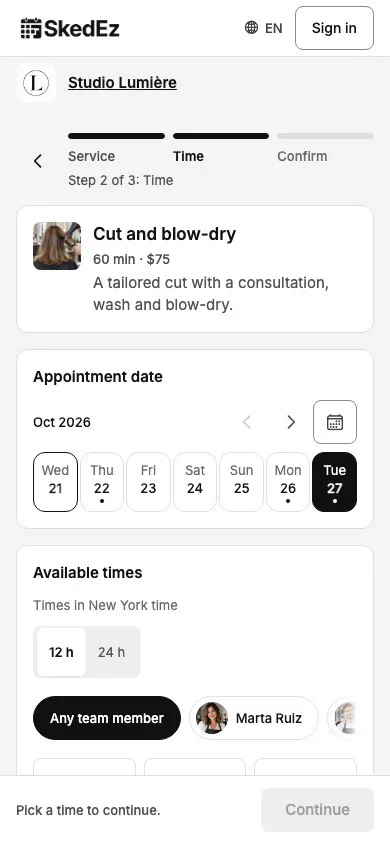
  1. Open your link in a private window and select Book on a service.

  2. Pick a time, select Continue, fill in your name, e-mail and phone, then select Confirm booking.

  3. Back in SkedEz, open the booking in Appointments, select its … menu, then Cancel appointment, and confirm.

Done when: the booking appears in Appointments and is gone after you cancel it.

Tip

A canceled booking does not count toward the Free plan's 10 bookings a month.
Appointment detail drawer over the list: a confirmed booking with service, time, team member and price

If something looks different

  • No times show for a day.

    Likely cause
    The day is closed or has time off.
    What to do
    Check your hours and Time off under Settings › Availability.
  • A service is missing from your page.

    Likely cause
    It is inactive, online booking is off for it, or no active team member offers it.
    What to do
    Open it under Services: set it to Active, turn on Allow booking under More options › Online booking, and assign a team member.
  • Your test booking says Request sent.

    Likely cause
    New bookings wait for your approval.
    What to do
    Approve the booking, or turn on Confirm bookings automatically under Settings › Booking.
  • You can't book on your own page.

    Likely cause
    While you're signed in, your page is a preview.
    What to do
    Open the link in a private window, as in step 8.
Was this guide helpful?

Found a mistake? Report an error

FAQ

Booking page questions

Do I need a website to have a booking page?

No. Your booking page has its own link, so you can share it in your bio, your Google Business Profile or a message. If you have a website, step 7 shows how to embed the page there.

Should clients choose a team member or just a time?

If clients come back to the same person, let them choose; if they want the soonest time, let them book whoever is free. Choosing a person needs the Teams plan; working alone, clients just pick a time.

How many services should my booking page show?

Keep the list short enough to scan on a phone: the services clients book most, with clear names. Rare or complex services can stay off the page and be booked in a conversation.

How much does it cost to create a booking page with SkedEz?

Nothing on the Free plan: 1 service and 10 bookings a month, no card. Pro costs €9.90 a month or €99.00 a year and removes those limits. Teams costs €14.90 a month for up to 20 team members.

Do clients need an account to book?

No. They type their name, e-mail and phone and book; signing in is optional.

Start with step 1

The first five steps take you from sign-up to a live booking page.

  • Free plan, no card
  • Pro and Teams: 15-day trial (card required)
  • No commission